
Documentationالتوثيق
From environment configuration to your first sign-in. A practical guide for your hosting and your development workflow.من إعداد ملف البيئة لأول تسجيل دخول. دليل عملي لتجهيز الاستضافة وأوامر التطوير.
Before you startقبل البداية
Rafnivo runs on a PHP/MySQL hosting environment. The installer checks the server before creating any tables.رافنيفو يعمل على استضافة PHP وMySQL. معالج التثبيت يفحص السيرفر قبل إنشاء الجداول.
| Requirementالمتطلب | What to prepareالمطلوب |
|---|---|
| PHPPHP | PHP 8.2.x with PDO MySQL, mbstring, JSON, DOM and GD.PHP 8.2.x مع إضافات PDO MySQL وmbstring وJSON وDOM وGD. |
| Databaseقاعدة البيانات | A new, empty MySQL or MariaDB database with InnoDB, and a user allowed to create and alter its tables.قاعدة MySQL أو MariaDB جديدة وفارغة تدعم InnoDB، ومستخدم لديه صلاحيات إنشاء الجداول وتعديلها. |
| Web serverخادم الويب | HTTPS and URL rewriting to index.php. Apache: enable mod_rewrite and allow the bundled .htaccess.HTTPS وإعادة توجيه المسارات إلى index.php. في Apache فعّل mod_rewrite واسمح بقواعد .htaccess المرفقة. |
| Filesالملفات | Upload the application, including hidden files. The PHP process must be able to write to storage/.ارفع ملفات التطبيق بما فيها الملفات المخفية، واسمح لعملية PHP بالكتابة في storage/. |
Use the folder containing index.php as the application root. A domain, subdomain or subfolder is supported. Keep the folder structure intact.جذر التطبيق هو المجلد الذي يحتوي على index.php. يمكن استخدام دومين أو ساب دومين أو مجلد فرعي، مع الحفاظ على ترتيب المجلدات.
If vendor/autoload.php is missing, install PHP dependencies using the command below. If your host has no terminal, prepare vendor/ on a compatible PHP 8.2 machine and upload it.لو ملف vendor/autoload.php غير موجود، ثبّت مكتبات PHP بالأمر التالي. ولو الاستضافة لا توفر Terminal، جهّز vendor/ على جهاز متوافق مع PHP 8.2 ثم ارفعه.
composer install --no-dev --optimize-autoloaderNode.js is needed only on a development/build machine when rebuilding browser assets. A normal installation can use the included built assets.Node.js مطلوب فقط على جهاز التطوير عند إعادة بناء ملفات الواجهة. التثبيت العادي يمكنه استخدام الملفات المبنية المرفقة.
Configure .env.phpتجهيز ملف .env.php
Copy .env.example.php to .env.php in the application root, then edit the copy in a text editor. This file holds settings that change between your computer and your hosting server, so you do not need to edit application code.انسخ .env.example.php إلى .env.php في جذر التطبيق، ثم افتح النسخة في محرر نصوص. الملف يجمع الإعدادات التي تختلف بين جهازك والاستضافة، بدل تعديل كود التطبيق.
It is a PHP file returning an array, not a plain KEY=value file. Keep quotes, commas and the final ];. Edit these entries in the copied file; retain its other entries.الملف PHP يعيد مصفوفة، وليس ملف KEY=value عادي. حافظ على علامات التنصيص والفواصل و]; في النهاية. عدّل المفاتيح التالية داخل النسخة مع الاحتفاظ بباقي الإعدادات.
<?php
return [
    'DEBUG' => false,
    'APP_NAME' => 'Rafnivo',
    'APP_URL' => 'https://example.com/rafnivo',
    'TIMEZONE' => 'Africa/Cairo',
    'LANGUAGE' => 'en',
    'LOCALE' => 'en_US',
    'ALLOW_REGISTRATION' => false,
    'DB_CONNECTION' => 'mysql',
    'DB_HOST' => '127.0.0.1',
    'DB_PORT' => '3306',
    'DB_NAME' => 'your_database',
    'DB_USER' => 'your_database_user',
    'DB_PASSWORD' => 'your_database_password',
    // Keep the remaining mail settings from .env.example.php.
];| Settingالإعداد | Why / when to change itالسبب ووقت التغيير |
|---|---|
APP_URLAPP_URL | Your base address, including the subfolder if used, without a trailing slash. Web requests detect their base URL; this value is the fallback for CLI jobs.رابط التطبيق الأساسي، شاملًا المجلد الفرعي إن وجد، بدون شرطة في النهاية. طلبات الويب تتعرف على الرابط تلقائيًا، والقيمة هنا مرجع لأوامر CLI. |
APP_NAMEAPP_NAME | Application name fallback. Your business/site name is also set in the setup wizard and saved in the database.اسم التطبيق الافتراضي. اسم الموقع والشركة يتم تحديده أيضًا داخل معالج التثبيت وحفظه في قاعدة البيانات. |
DB_*DB_* | Use the exact database name, username, password, host and port supplied by your host. The installer uses this connection; it does not write these credentials for you.استخدم اسم قاعدة البيانات والمستخدم وكلمة المرور والهوست والبورت من الاستضافة. المعالج يستخدم هذا الاتصال ولا يكتب بياناته بدلًا منك. |
TIMEZONE / LOCALETIMEZONE / LOCALE | Set a valid timezone. English defaults: en/en_US; Arabic: ar/ar_EG. Choose the workspace language in the installer too.اختر منطقة زمنية صحيحة. الإنجليزية: en/en_US، والعربية: ar/ar_EG. اختر لغة مساحة العمل داخل المعالج أيضًا. |
DEBUG / ALLOW_REGISTRATIONDEBUG / ALLOW_REGISTRATION | Keep DEBUG false on your public site. Keep registration false unless you intend to allow public account registration.اترك DEBUG بالقيمة false على الموقع العام. اترك التسجيل false إلا لو أردت السماح بإنشاء حسابات عامة. |
SMTP email settingsإعدادات البريد SMTP
For password-reset and application email, replace the mail entries with the values from your mail provider. Port 587/TLS below is an example; use your provider’s required port and encryption.لرسائل استعادة كلمة المرور وبريد التطبيق، ضع بيانات مزود البريد. البورت 587 وTLS في المثال فقط؛ استخدم البورت والتشفير المحددين من مزودك.
'MAILER_METHOD' => 'smtp',
'MAIL_HOST' => 'smtp.example.com',
'MAIL_PORT' => '587',
'MAIL_SECURE' => 'tls',
'MAIL_USERNAME' => 'your_smtp_user',
'MAIL_PASSWORD' => 'your_smtp_password',
'MAIL_FROM_NAME' => 'Your Store',
'MAIL_FROM' => 'noreply@example.com',
'MAIL_DEBUG' => 0,
'MAIL_ALLOW_SELF_SIGNED' => false,
Validate the file with php -l .env.php. Keep your real environment file private, out of the public download package and version control. Do not replace it with the example during an upgrade.افحص صيغة الملف بالأمر php -l .env.php. احتفظ بالملف الحقيقي خاصًا، خارج نسخة التحميل العامة وGit، ولا تستبدله بملف المثال أثناء تحديث التطبيق.
Run the setup wizardتشغيل معالج التثبيت
Open https://example.com/rafnivo/install, replacing the base address with yours. The wizard has three main stages; Configure contains three small steps.افتح https://example.com/rafnivo/install مع استبدال الرابط الأساسي برابطك. المعالج به ثلاث مراحل رئيسية، ومرحلة Configure تحتوي على ثلاث خطوات صغيرة.
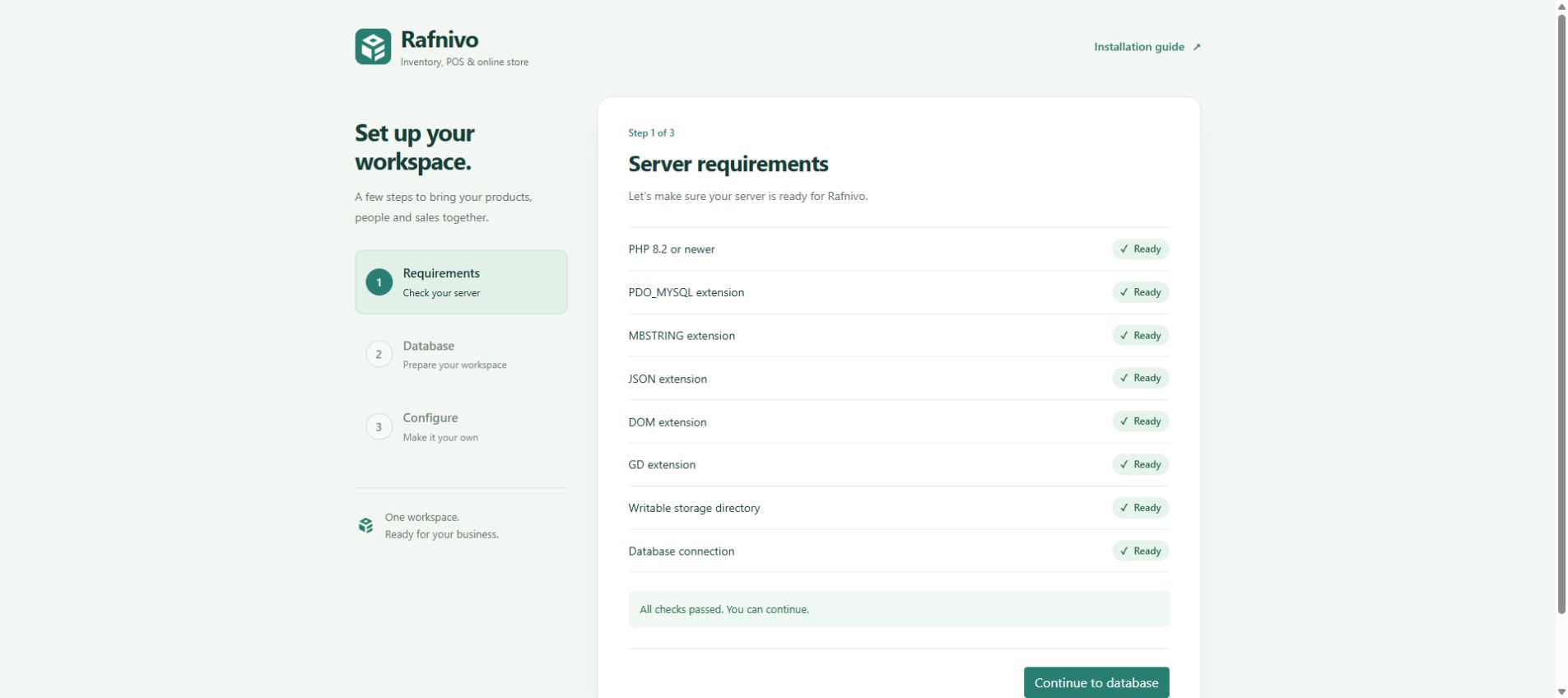
1. Requirements١. المتطلبات
All checks must show Ready. If the database check fails, correct DB_* in .env.php first. Choose Continue to database.كل الفحوصات لازم تظهر Ready. لو فحص الاتصال فشل، صحّح DB_* في .env.php أولًا، ثم اختر Continue to database.
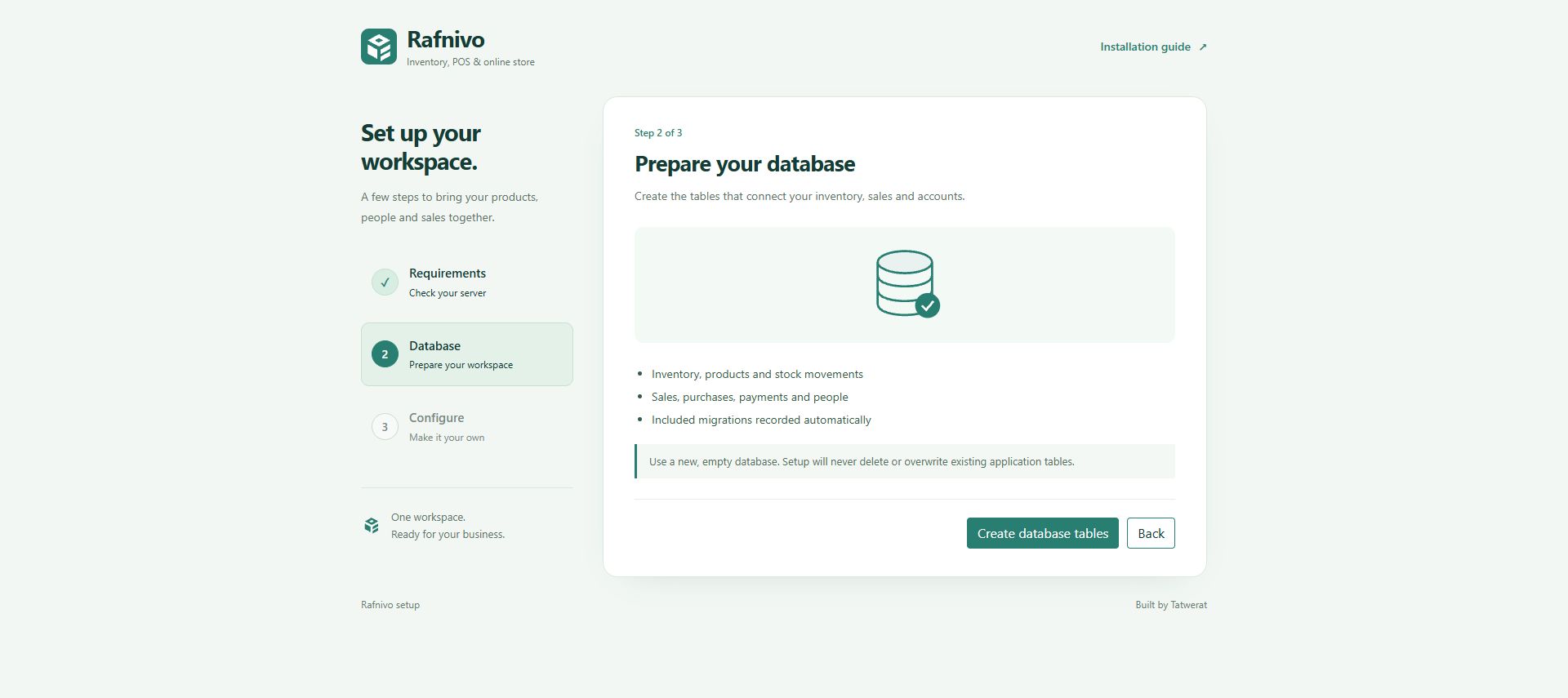
2. Database٢. قاعدة البيانات
Choose Create database tables on a new, empty database. Setup creates the schema and records the bundled migrations; no manual SQL import is needed.اختر Create database tables على قاعدة جديدة وفارغة. المعالج ينشئ الجداول ويسجل المايجريشن المرفقة، ولا تحتاج استيراد SQL يدويًا.
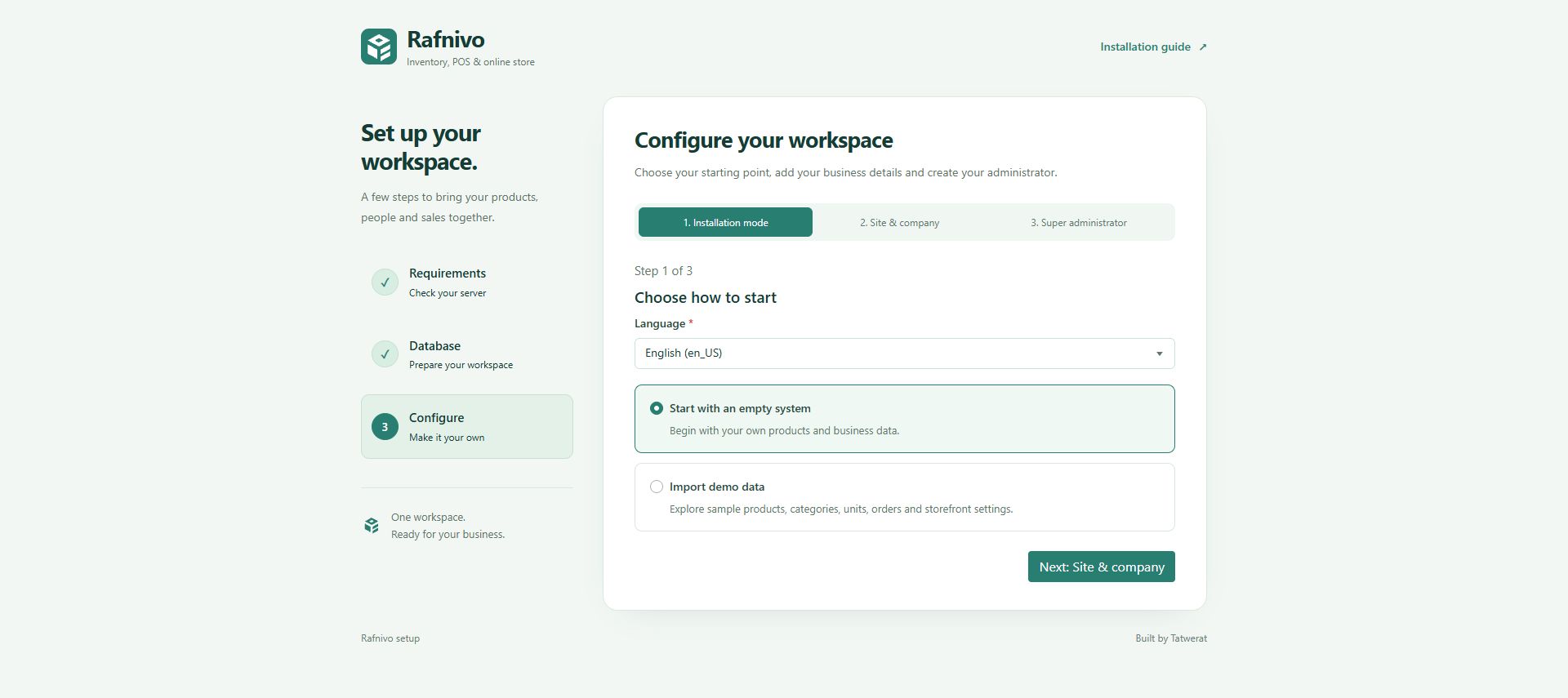
3a. Installation mode٣أ. وضع التثبيت
Choose your language. Use Start with an empty system for your own business, or Import demo data to explore sample data. Click Next: Site & company.اختر اللغة، ثم Start with an empty system لبيانات شغلك الفعلية أو Import demo data للتجربة ببيانات جاهزة. اضغط Next: Site & company.
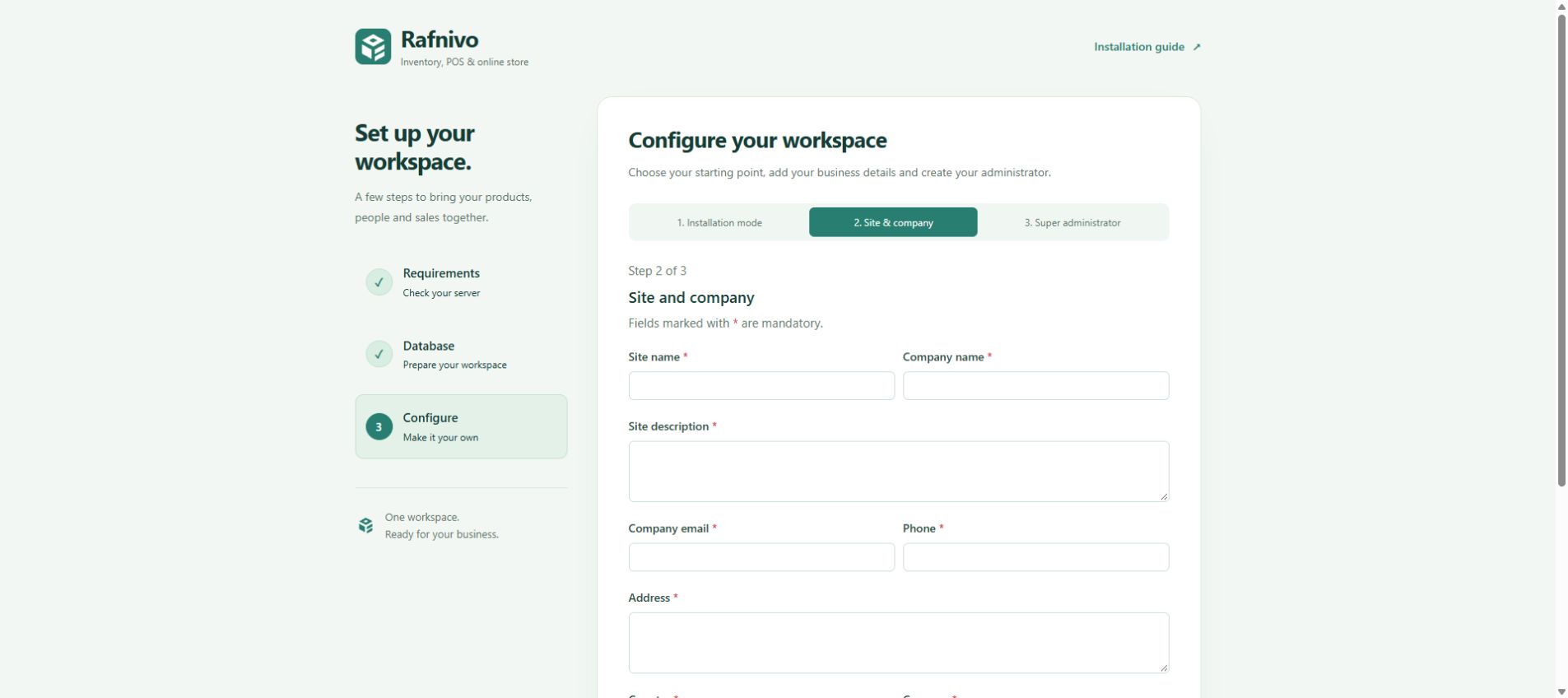
3b. Site & company٣ب. الموقع والشركة
Fill in site name, company name, description, email, phone and address. Choose country, currency and barcode type. Set the low-stock threshold and optionally enable the online store, then continue.أدخل اسم الموقع والشركة والوصف والإيميل والتليفون والعنوان. اختر الدولة والعملة ونوع الباركود، وحدد حد تنبيه انخفاض المخزون وتفعيل المتجر إن أردت، ثم تابع.
3c. Super administrator٣ج. المدير الرئيسي
Enter your full name, username and email. Choose and confirm a strong password of at least 8 characters. Click Finish setup, then sign in with that account. Completed installations redirect away from the installer.أدخل الاسم واسم المستخدم والإيميل، وكلمة مرور قوية لا تقل عن 8 أحرف مع تأكيدها. اضغط Finish setup، ثم سجّل الدخول بهذا الحساب. بعد اكتمال التثبيت يتم تحويلك بعيدًا عن المعالج.
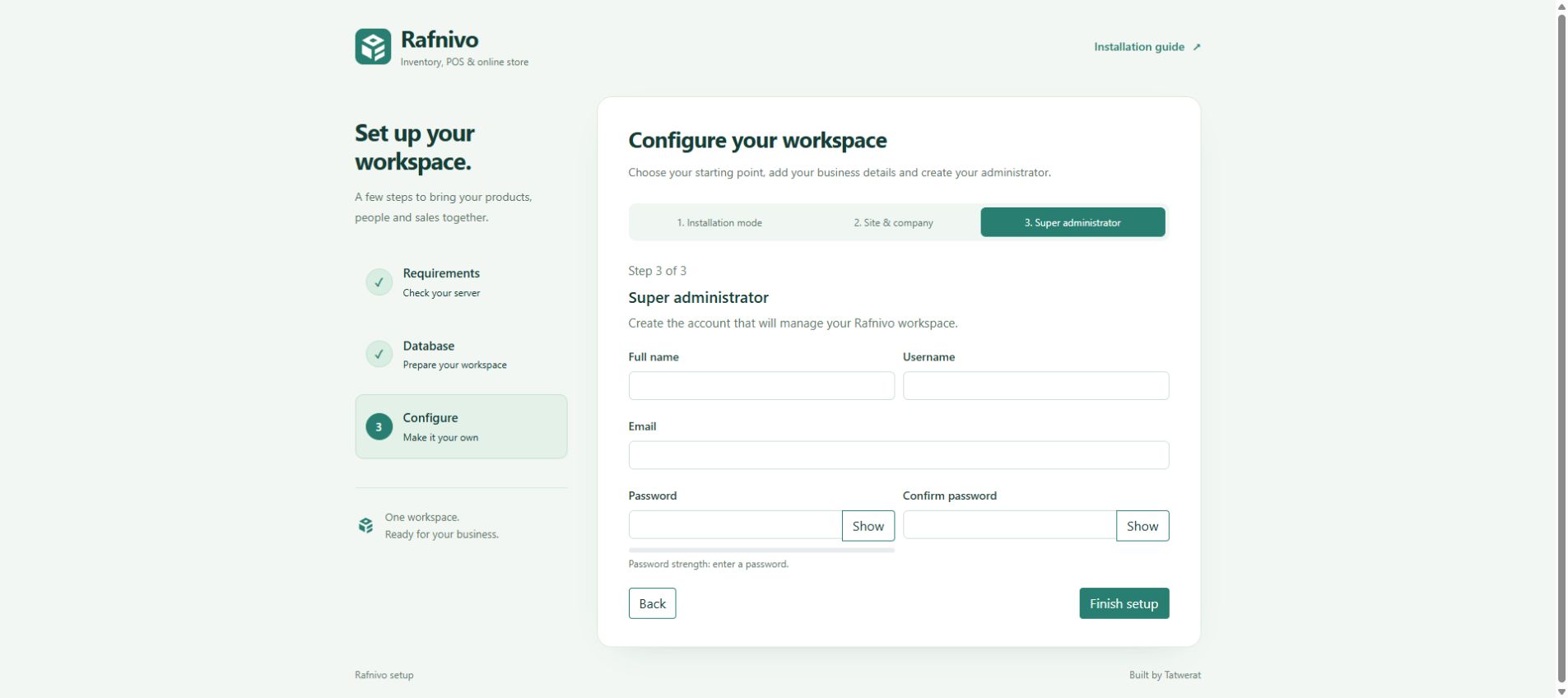
After signing in, review Main Settings, company details, currency and mail delivery before adding real stock or accepting orders. Configuration screenshots use empty preview forms; they contain no real account data.بعد الدخول، راجع الإعدادات الرئيسية وبيانات الشركة والعملة وإرسال البريد قبل إضافة المخزون الفعلي أو استقبال الطلبات. صور مرحلة Configure مأخوذة من معاينات فارغة لنفس الفورمات، ولا تحتوي على بيانات حسابات حقيقية.
Developer guideدليل المطور
Run commands from the application root, where composer.json and package.json are located. Use a supported Node.js LTS on your build machine.نفّذ الأوامر من جذر التطبيق، حيث يوجد composer.json وpackage.json. استخدم إصدار Node.js LTS مدعومًا على جهاز البناء.
PHP dependenciesمكتبات PHP
composer install --no-dev --optimize-autoloader
composer check-platform-reqs --no-dev
install uses the shipped composer.lock. To intentionally update libraries, do it on a development copy, test it, then ship the updated lock file.أمر install يستخدم نسخ المكتبات المحددة في composer.lock. لتحديث المكتبات عن قصد، نفّذ ذلك على نسخة تطوير واختبرها، ثم ارفع ملف القفل المحدّث.
composer update vendor/package --with-dependencies
composer audit
Replace vendor/package with the package you are updating. A full composer update resolves all allowed dependencies; it is not the normal install or deployment command.استبدل vendor/package باسم المكتبة المطلوبة. أمر composer update بدون اسم يعيد تحديد نسخ كل المكتبات المسموح بها؛ وليس أمر التثبيت أو النشر المعتاد.
Browser libraries & buildمكتبات الواجهة والبناء
npm ci
npm run build
npm run test:assets
npm ci installs from package-lock.json. The build reads bin/vendor-assets.json and writes browser libraries to views/themes/inventory/assets/dist/, including a manifest. Ship that entire folder. Production pages do not load files from node_modules/.أمر npm ci يثبّت المكتبات حسب package-lock.json. البناء يقرأ bin/vendor-assets.json ويكتب المكتبات وملف manifest داخل views/themes/inventory/assets/dist/. ارفع المجلد كاملًا؛ صفحات الإنتاج لا تحمّل من node_modules/.
SCSS changesتعديل SCSS
npm run build packages browser libraries; it does not compile the app’s SCSS. After changing a theme entry, compile it separately, for example:أمر npm run build يجمع مكتبات الواجهة، ولا يحوّل SCSS الخاص بالتطبيق. بعد تعديل ملف SCSS رئيسي، حوّله منفصلًا، مثلًا:
npx --yes --package=sass sass views/themes/inventory/assets/scss/custom.scss views/themes/inventory/assets/css/custom.css --style=compressedCompile the entry that owns your change, and deploy the matching generated CSS. The installer uses its own views/installer/installer.css.حوّل الملف الرئيسي المرتبط بتعديلك، وارفع CSS الناتج معه. واجهة التثبيت لها ملف مستقل: views/installer/installer.css.
Upgrade an existing installationتحديث تثبيت موجود
- Back up the database,
storage/,.env.phpand any custom code.خذ نسخة احتياطية من قاعدة البيانات وstorage/و.env.phpوأي تعديلات خاصة. - Deploy the new application files and built assets. Preserve the existing environment file and uploaded files.ارفع ملفات الإصدار وملفات الواجهة المبنية، مع الاحتفاظ بملف الإعدادات والمرفوعات الحالية.
- Install the locked PHP dependencies and apply only pending migrations:ثبّت مكتبات PHP المحددة وطبّق المايجريشن الجديدة فقط:
composer install --no-dev --optimize-autoloader
composer migrate
Check sign-in, inventory, sales/POS and uploads. Do not run the fresh installer against an existing database. Use a separate test database for composer test; the suite includes database integration checks.راجع تسجيل الدخول والمخزون والمبيعات ونقاط البيع والمرفوعات. لا تشغّل التثبيت الجديد على قاعدة موجودة. استخدم قاعدة اختبار منفصلة لأمر composer test لأن الاختبارات تشمل قاعدة البيانات.
Reference: Composer install / update · npm ci.مراجع: Composer install / update · npm ci.
Quick troubleshootingحلول سريعة
| What you seeالمشكلة | What to checkما الذي تراجعه |
|---|---|
| Database connection: MissingDatabase connection: Missing | Check DB_HOST, port, database name, username, password and database permissions in .env.php.راجع الهوست والبورت واسم القاعدة والمستخدم وكلمة المرور وصلاحيات القاعدة في .env.php. |
| Missing extension / storage checkإضافة مفقودة أو storage غير قابل للكتابة | Enable the extension in the PHP version serving the site, not just CLI. Give the PHP user write access to storage/; avoid blanket 777 permissions.فعّل الإضافة في نسخة PHP التي تخدم الموقع، وليس CLI فقط. اسمح لمستخدم PHP بالكتابة في storage/ بدون صلاحيات 777 العامة. |
| 404 routes or broken assetsمسارات 404 أو ملفات واجهة لا تظهر | Check URL rewriting, the application subfolder, uploaded hidden files and the complete assets/dist/ directory. Clear stale browser cache after an upgrade.راجع إعادة كتابة المسارات والمجلد الفرعي والملفات المخفية ومجلد assets/dist/ كاملًا. حدّث كاش المتصفح بعد الترقية. |
| Existing application tables foundتم العثور على جداول موجودة | For a fresh install, use a new empty database. For an existing installation, restore the correct configuration or follow the upgrade steps; do not delete your data.للتثبيت الجديد استخدم قاعدة فارغة. للتثبيت الموجود راجع الإعدادات الصحيحة أو اتبع خطوات التحديث، ولا تحذف بياناتك. |
| Session token expiredانتهت صلاحية رمز الجلسة | Refresh the installer and submit again. Allow browser cookies and use one consistent application URL.حدّث صفحة المعالج وأعد المحاولة، واسمح بالكوكيز واستخدم نفس رابط التطبيق طوال التثبيت. |
For support, include the failing step, PHP version and a screenshot with private values removed. Never send database passwords, SMTP passwords or your full .env.php.عند طلب الدعم اذكر الخطوة التي فشلت وإصدار PHP وصورة بعد إخفاء القيم الخاصة. لا ترسل كلمات مرور قاعدة البيانات أو البريد أو ملف .env.php كاملًا.